Finding your way around your app
Every app is built for its own business, but the menu starts the same, and every list and record works the same way. Learn one, and you know them all.
Your app and Gregory
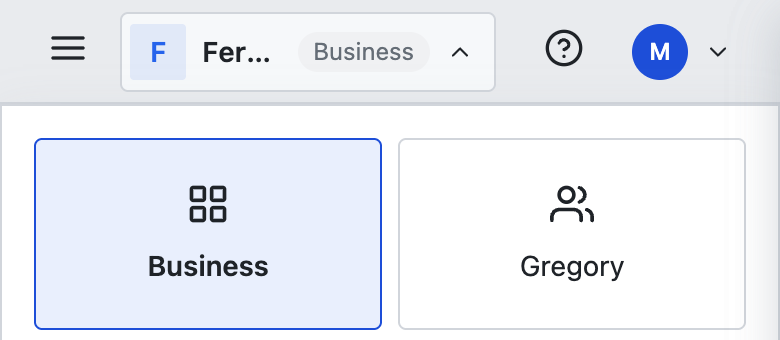
Your app has two sides.
- Business is your app itself: your customers, bookings, money and everything else you run your business with. Your staff work here too.
- Gregory is where you talk to Gregory, and where you look after your app: Needs you, Activity, the Sandbox, what your app does by itself, Forms (where you make them), Connections (everything your app is connected to), and your helpers. Only owners can open it.
To switch, press your business's name at the top left, then choose Business or Gregory. On the business side, Ask Gregory at the bottom right opens Gregory too.
Your menu
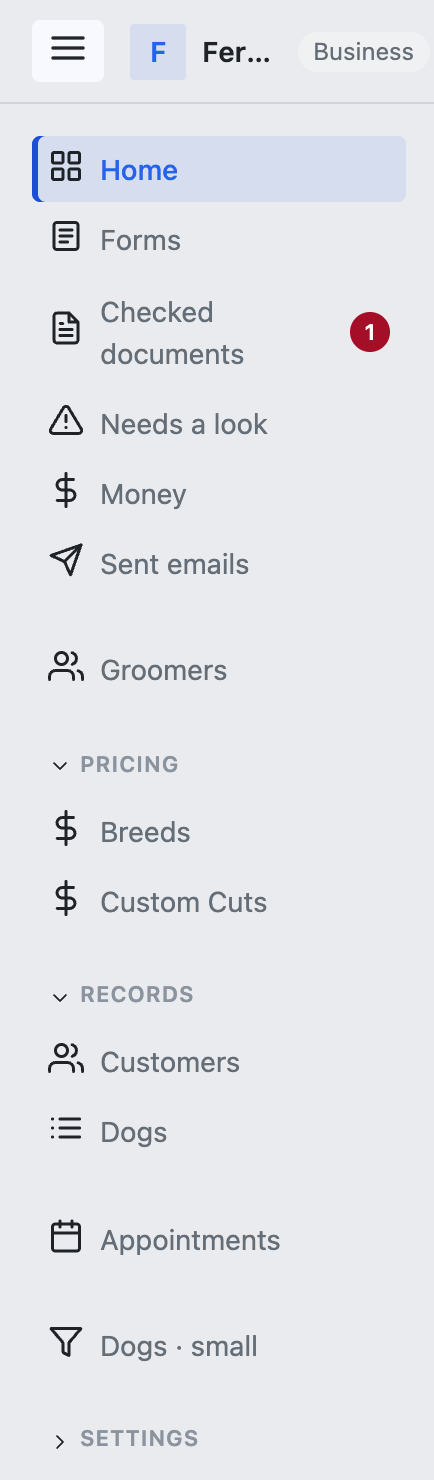
Your menu is on the left. On a phone, it's behind Menu. It starts with Home, then the pages Gregory built for your business, such as your customers and bookings. Some pages appear only when your app needs them:
- Home: a summary of your business. Until you open, it shows your Getting ready checklist.
- Forms: if your app has forms. You and your staff send forms here and see who still needs one. You make them in Gregory → Forms. See The Forms page.
- Checked documents: if your app checks documents people send you.
- Inbox: if your app has its own email address. The emails sent to your app's address.
- Needs a look: if your app has form packages. Forms that need sorting out wait here.
- Money: if your app sends bills. Charges, payments, prices and invoices. See Charging a customer.
- Sent emails: the emails your app has sent.
- Library: if your app has things like a quiz or a payment link.
- Payments: if something in your app takes payments, such as a form or a payment link. Every payment received.
- Views: lists you've saved with their filters (see Save this view).
Gregory can put your own pages in groups, such as Pricing or Records. A number beside a page tells you how many things there need you. Groups fold and unfold, and your app remembers how you left them.
Settings
Settings is at the bottom of your menu, folded until you open it. It holds the things you set once and change now and then:
- Users and Roles: who can sign in, and what they can do. Support access is on Users. See For staff.
- Portals: if your customers have their own sign-in.
- Emails: the wording of the emails your app sends.
- Branding: your app's name, logo, colors and opening hours.
- Your records: download everything.
- Document Storage: files you keep in your app. Upload one, or bring one in from a link.
Your email, your front desk and your connections aren't here: you set those up on Gregory's side, under Forms and Connections.
Your lists and records
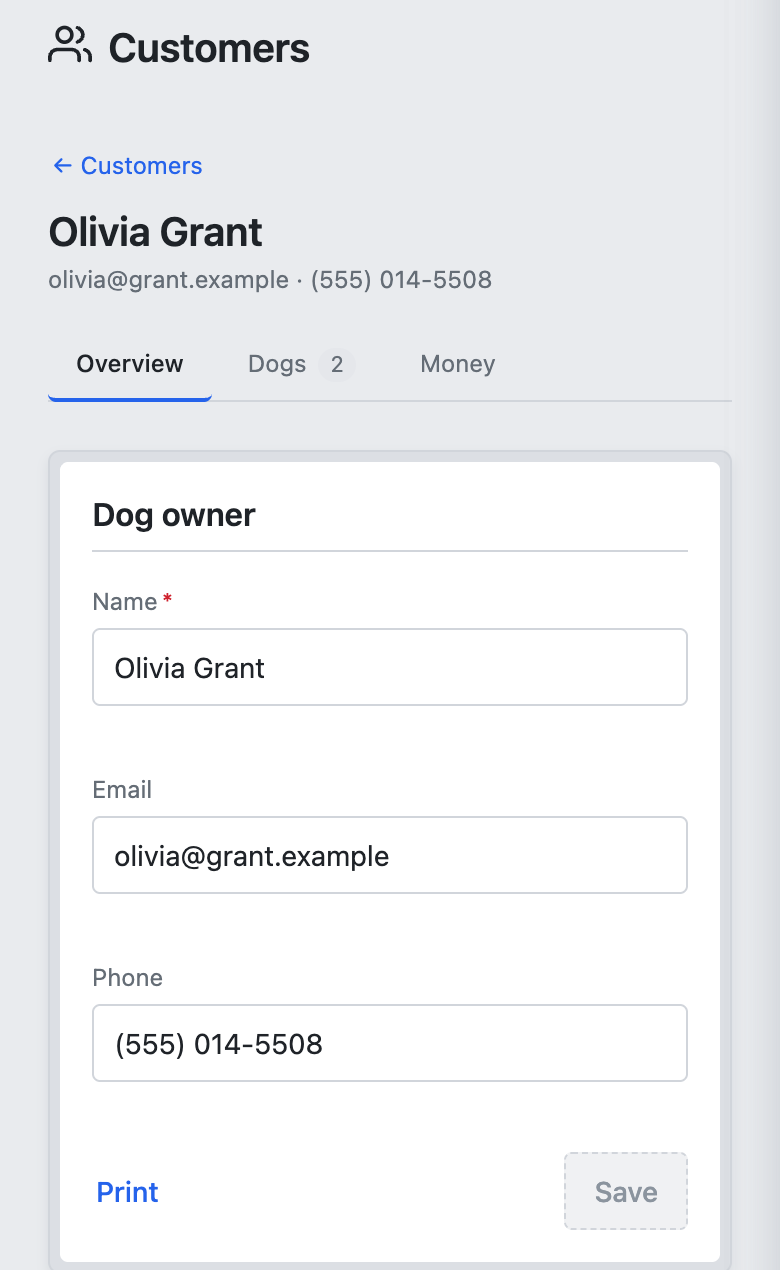
Every kind of record in your app, such as your customers, pets or bookings, has a list, and each record in it has its own page. They all work the same way.
The list
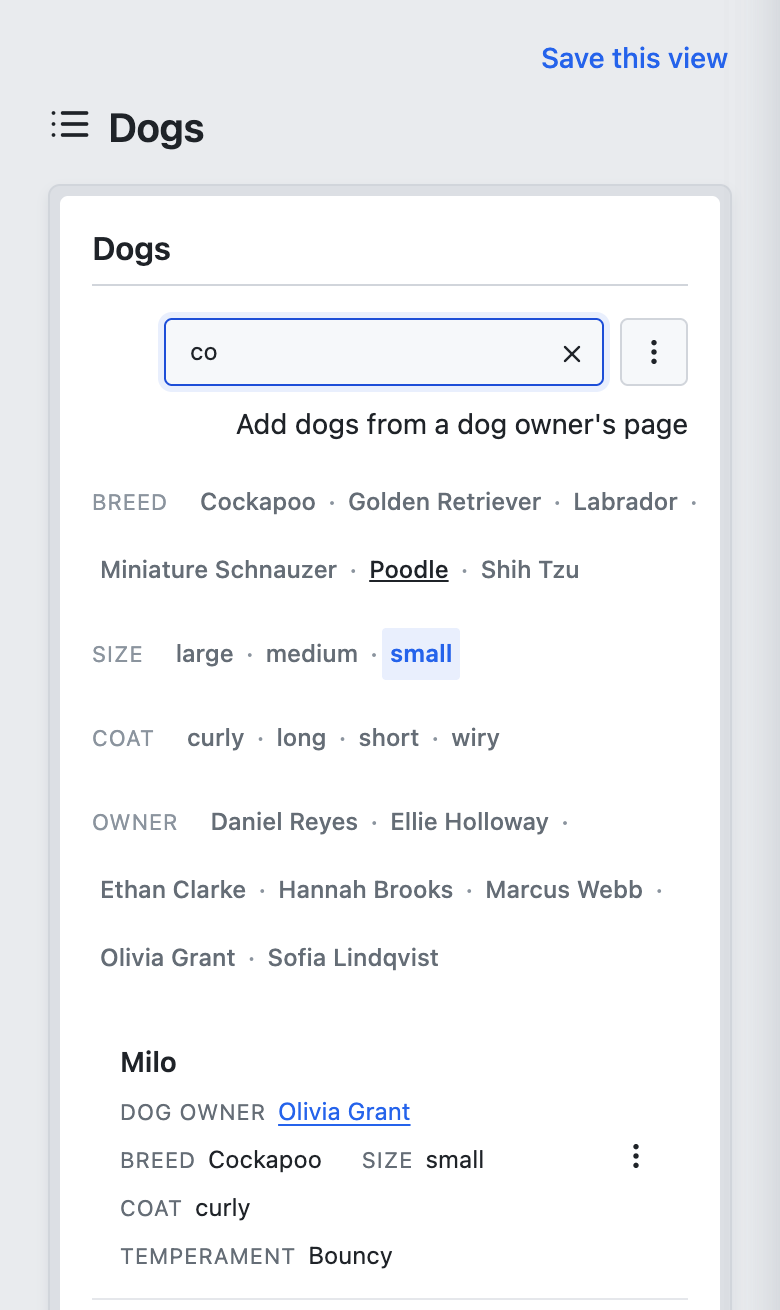
- Search finds records as you type.
- Filter buttons, where your list has them, narrow it down: pick a status, a place, a date. Picking two in the same row shows both; picking in two rows shows only what matches both.
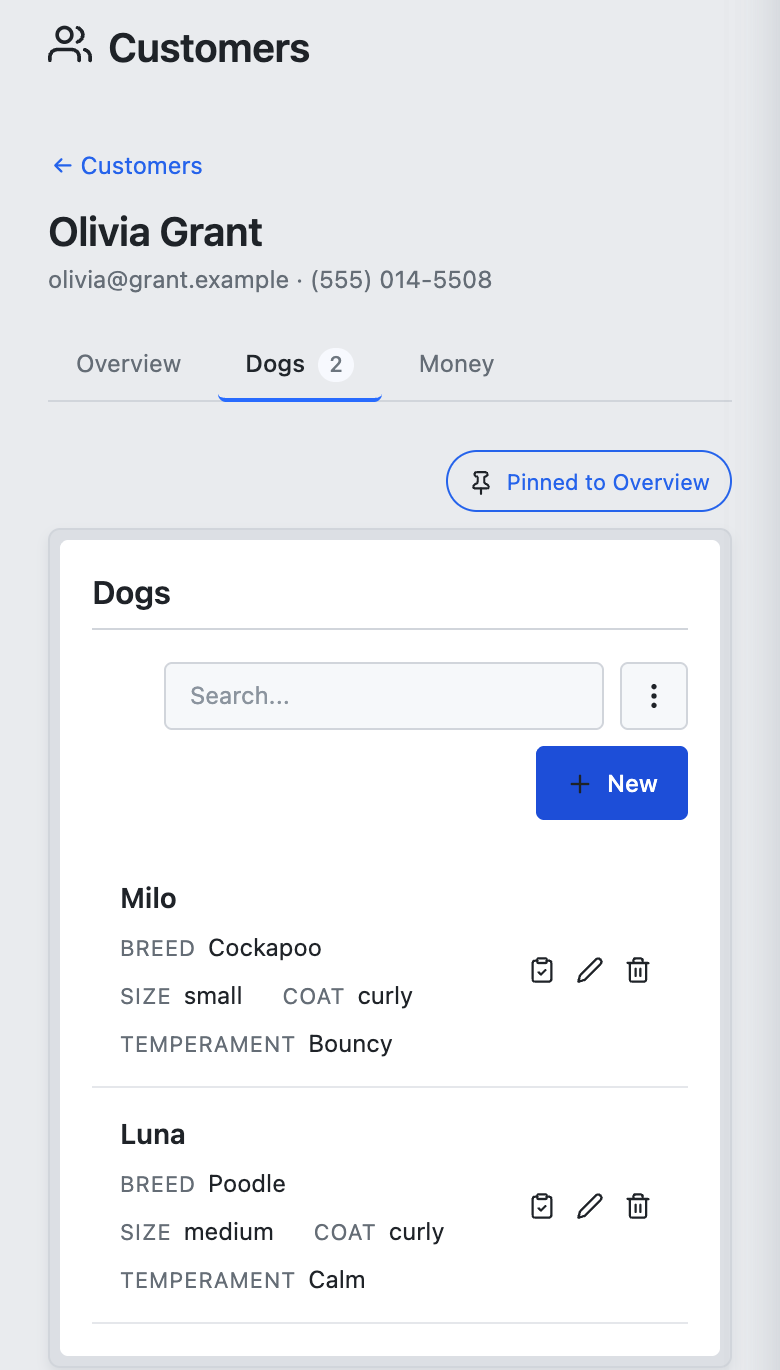
- New adds a record. Some records are added from somewhere else, such as a pet from its owner's page; the list tells you where.
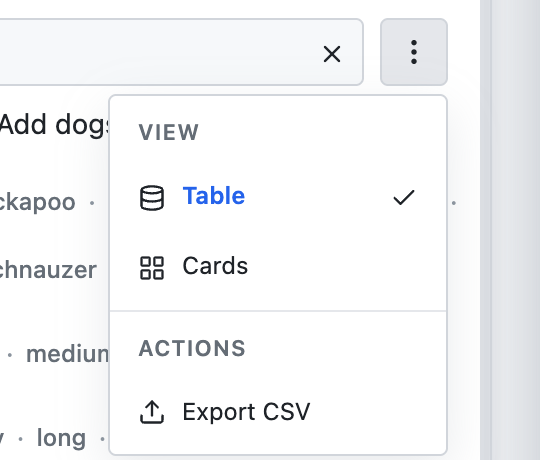
- The ⋮ menu shows the list as a Table or as Cards, and Export CSV downloads it for a spreadsheet.
A record's page
Open a record from its row to see its page.
- Overview shows its details. Change what you need, and press Save.
- A tab for each thing that belongs to it, with how many there are. A customer might have tabs for their pets, bookings and charges. When there are more than four, the rest are under More.
- Pin to Overview on a tab puts it on the Overview, so what you look at most is first. Your pins are yours: they don't change anyone else's view.
- At the bottom of the Overview, you can delete a record. Some lists keep records instead: there it's Archive, which puts a record away, and Show lets you see archived ones again.
Save this view
Once you've searched or filtered a list, Save this view appears at the top. One press keeps it, named after the list and your filter, such as Dogs · small, and it appears in your menu with a funnel icon. A list you use every day, like this week's bookings, is then one click away.
Fill in for…
Every row has Fill in for…. It gets any form to the person that record is about, already filled in with what your app knows: Email it to them, Fill in now on this computer, or Hand over at the front desk.
When your app is different
This is the standard way, not the only way. Gregory builds your lists and records this way unless you ask for something else. If your business needs a different layout, a page of its own or something added, tell Gregory, while he's building your app or any time later. So your app may not look exactly like the pictures here.
What staff and customers see
- Staff see only the pages and records their role allows, and some pages, like Emails, Branding and Your records, are only ever yours. See For staff.
- Customers who sign in to your app see only their own record and what belongs to it.
Help on every page
Press ? at the top of any page for its help: This page says what it's for, and What you can do here gives the steps, written from your own app.
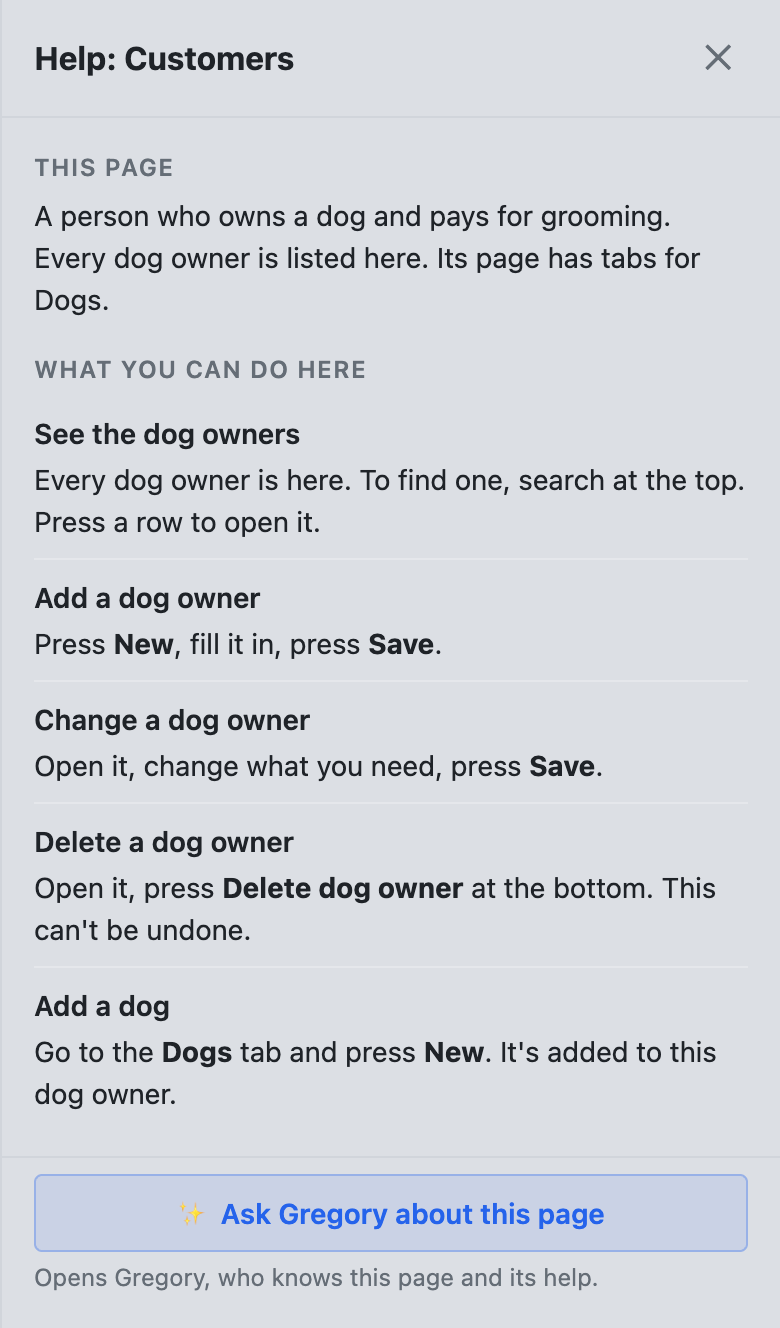
- You can also choose Ask Gregory about this page. Questions are free.
- Your staff can choose Ask how to do something. It's answered by AI from your app's help, and it can't change anything. Up to 20 questions a day each, counted in your AI allowance.
If you're stuck
Ask Gregory. He answers questions about your app and tells you where to do things, and questions are free. You can also email support@ask-gregory.com.