Judy, your front desk
Judy answers your customers' email, sends welcomes and goodbyes, and looks after forms.
Answering customer email
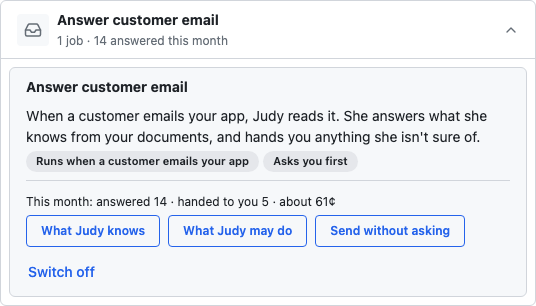
Judy is an AI, and she signs her emails that way. When a customer emails your app, she reads it, answers what she knows, and checks every fact before a reply goes.
- Make sure your email reaches your app.
- Open Judy, choose Add jobs, then Answer customer email.
- Check what she knows.
- Choose what she may do under What Judy may do. Nothing is ticked at the start.
What she knows
Open Judy, and choose What I know. It's the one place to see and change what she answers from, for email and your website chat:
- About your business: once your first build is live, Gregory writes this from your conversation, and it comes to you in Needs you. Nothing is used until you save it, and your saved words stay yours. Anything he doesn't know is marked Fill in. Leave one empty, and she hands those questions to you. He doesn't type in prices.
- Your documents: read or remove them, or choose Give Judy a document.
- From your app: lists you tick, such as services and prices. She reads them fresh each time.
- Answers you've given Judy: change or remove them.
After a later change to your app, Gregory suggests what to add in Needs you. He never changes or removes anything without asking.
If her sources disagree, your app's lists win, and you're told about the clash. If two others disagree, she hands you the question. Keep prices in your lists, so they stay right everywhere.
Checking her replies
To begin with, every reply waits in Needs you. You can choose Send it, Change it or Don't send, I'll answer it myself. She also tells you why she answered that way.
You can stop checking any time. On any of her jobs, choose Send without asking, and she sends by herself. You're told first what you'd stop checking, and anything she isn't sure of still comes to you. To go back, choose Ask me first.
When she hands it to you
If she isn't sure, or it needs a person, she hands it to you and says why. Changing or cancelling a booking always comes to you. Write your answer there and choose Send my answer.
Before it goes, she checks that it answers the question. If it doesn't, she says why, and you can:
- change it and send it again;
- Explain to Judy: she looks again, and often offers a better version to send and remember;
- Send it anyway: it goes, but she won't remember it;
- Answer later: it keeps waiting, with what you wrote.
Tick Remember this answer for next time, and if she agrees it answers the question, she answers it herself next time. She decides what she remembers. To teach her something she won't remember, add it to What I know in your own words.
When what she knows changes, she looks again at general questions waiting, and any she can now answer have her reply ready to send. Ask Judy to try again does the same whenever you like.
You can also choose Don't send, I'll answer it myself.
Forms and requests by email
If you've allowed it under What Judy may do:
- Forms: she can reply with your forms when someone asks something a package covers. A new person gets the package that makes them a customer.
- Requests: when a customer on file asks for a booking, she can set up a request and reply that you'll confirm. You approve it first in Needs you.
Welcome and goodbye emails
She can email each new customer a welcome, and say goodbye when one is removed. She asks you before each goodbye. You approve the wording once, and after that it uses no AI.
Looking after forms
Under Add jobs, she can also send forms before a visit, chase unfinished ones, say when one is due for renewal, send a copy to whoever filled it in, and tell you when one is done. For how forms work, see the Forms page.
If the AI allowance runs out
Judy stops answering with AI and hands new emails to you. Your app keeps working.
If you're stuck
Ask Gregory. He answers questions about your app and tells you where to do things, and questions are free. You can also email support@ask-gregory.com.