Your customers, forms and payments
What your customers see, how they fill in your forms, and how you charge them and get paid.
What your customers see
Your customers don't need an account to fill in a form you've emailed them, or to pay an invoice. They open the link on their own phone or computer.
If your app has a sign-in page for your customers, they see only what's theirs. You add a person from their record, on the Portal users tab, and they get an email with a link to set their password. Don't have one and would like it? Ask Gregory.
The Forms page
This is where you look after everything your customers fill in. It has three tabs:
- Packages: one form or several, filled in as one visit. For example: about you, your dog, then a waiver.
- Forms: every form, the list it fills, and where it's used.
- Needed: who's coming in without a form they need. Your staff can see this tab too.
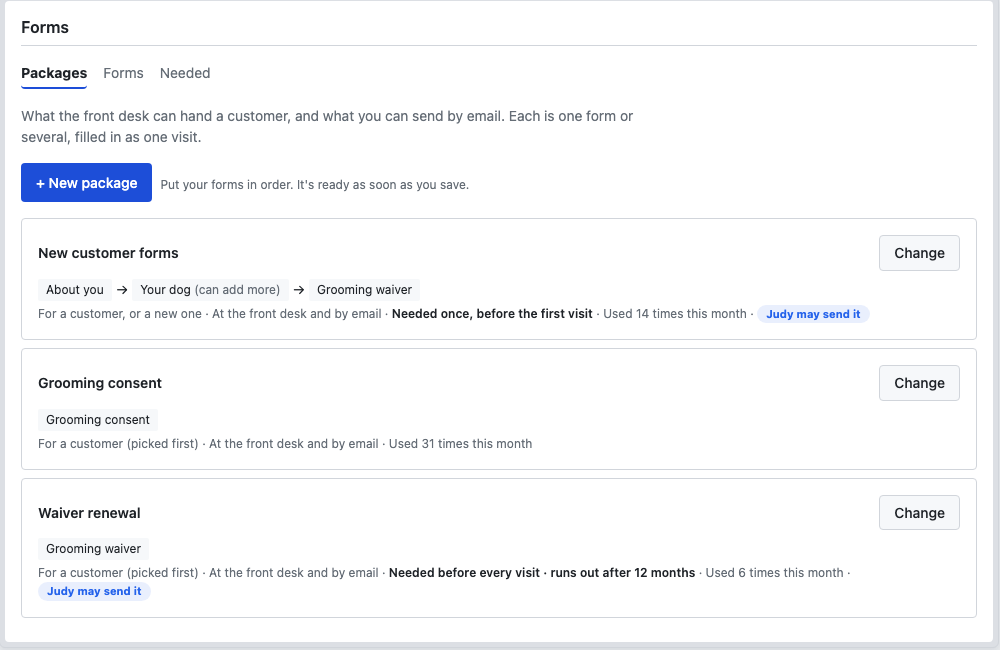
Making a form or package
You make these by picking from lists, without Gregory and without a check. They're ready as soon as you save.
A new form
- Pick the list it fills, and give it a name.
- Tick what to ask, and mark anything that's required.
- Choose where it's used: At the front desk and by email, or A public link that anyone can use.
A new package
- Choose New package, and say who it's for.
- Put the forms in order. A form can let someone add more, such as a second dog.
- Choose when it's needed: only when you send it, once before their first visit, renewed every so many months, or at every visit.
Your app works out how each form connects to the customer. If a form wouldn't belong to anyone, it tells you why.
Getting forms filled in
- At the front desk: customers fill them in on your tablet. Set up the front desk first.
- By email: on the Packages tab, choose Send…. Pick a customer on file, or someone new, who becomes a customer when they finish.
- By Judy: Judy, your front desk helper, is an AI. She can send a package if you've ticked it under What Judy may do. Each package that she may send says so.
What they fill in and sign is kept with their record.
Who still needs a form
If a package is needed once, or renews, the Needed tab shows who's coming in without it, so you can sort it out before they arrive.
Charging a customer
A charge is separate from the booking or job it's for. Saving an appointment never charges anyone by itself.
- Choose Charge… on the record, or Save and charge… when you add it.
- Check Who pays. Your app suggests someone, and you can choose another.
- Check what it's for. Add a line for each thing on the visit, such as a groom and a nail trim.
- Choose Charge.
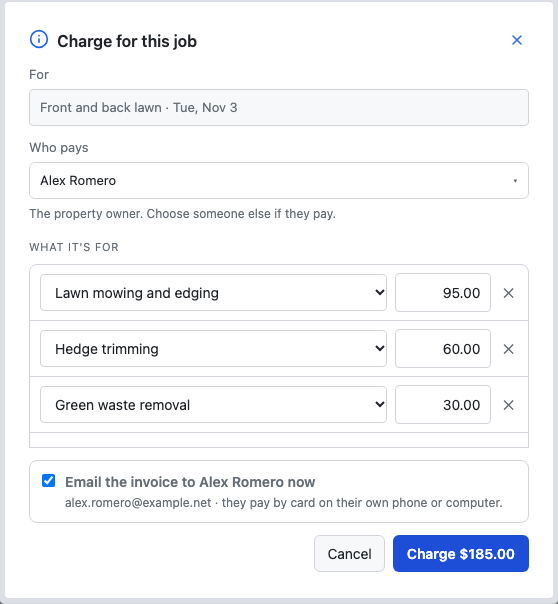
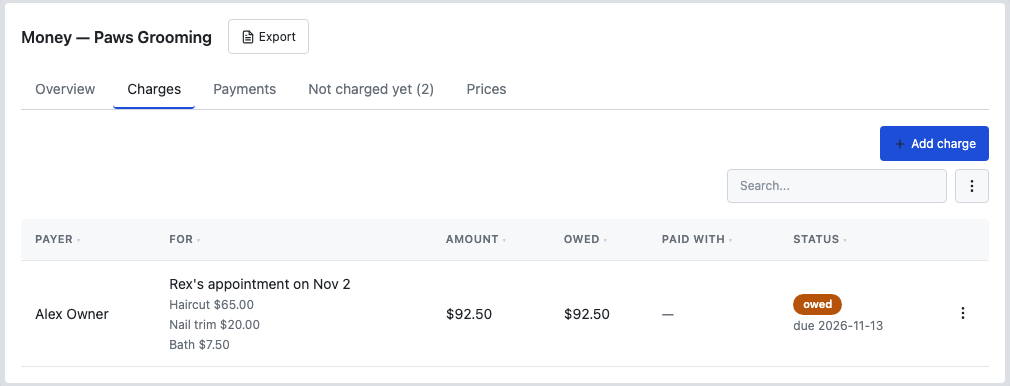
Records that haven't been charged show under Money → Not charged yet. To see your prices, go to Money → Prices.
Staff can charge too, if you allow it. With Charge for their own visits, they can charge for the visits they can see, at your prices. They can't open Money, see other charges, or change a charge once it's made.
How a charge gets paid
In Money → Settings, each kind of charge has two ticks. You can use either or both:
- In office: charged and paid there and then, by cash, check, or card on your own device.
- On-site, by invoice: emailed with the charge, and paid by card on your customer's own phone or computer.
Need it to differ between visits, such as home visits only? Ask Gregory to add a choice to the record, then set each one here.
Invoices
When a charge is by invoice, your customer gets a numbered invoice by email, with each line, the total and the due date. Pay by card opens their statement, and they don't need an account. Card details go straight to Stripe and never touch your app.
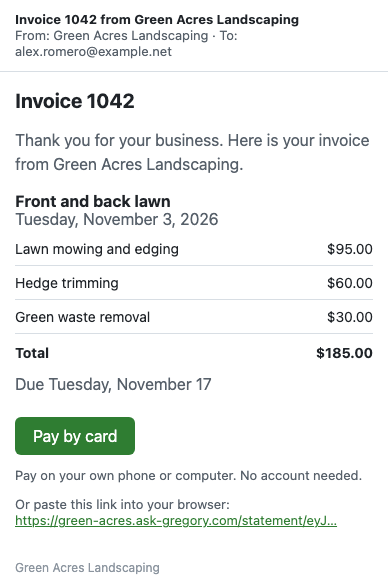
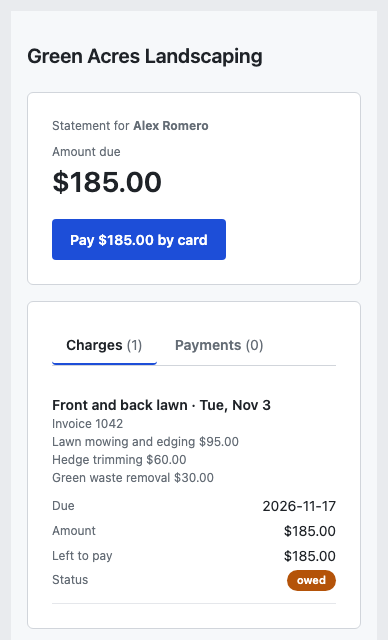
Emailing invoices needs two things: card payments set up, and an email address for whoever pays. If either is missing, the charge box tells you. To send one again, use Email a pay link under Take payment.
Recording a payment
You can always record money that comes in, whatever your ticks say. In Money, choose Take payment, then how they're paying: Card, Cash, Check or Other.
- Paying part is fine. Paying more than is owed leaves the rest as credit.
- Your customer gets a receipt by email.
- By card, in person: Pay here now takes it on your own device.
To reduce a bill, open the charge and choose Discount or waive….
Monthly bills
If you bill an organization for many visits, such as a school or a company, it can get one bill a month. Charges are recorded as they happen. On the 1st, the bill goes out with last month's charges, the total and a link to pay. It's due on the 5th unless you told Gregory otherwise.
Keeping an eye on money
Money → Overview shows where things stand, including who owes the most and your payment reminders. Charges and Payments list everything. To change how reminders work, ask Gregory.
If you're stuck
Ask Gregory. He answers questions about your app and tells you where to do things, and questions are free. You can also email support@ask-gregory.com.